
Shopify operations · 01 / 05
Behind the workflow: SyncShopifyInventoryToStore
Prerequisites for your store
- Your Shopify hostname must resolve to the store linked to the job’s Randmar account. With inventory sync enabled, usable Shopify access and a fulfillment service named Randmar.io with a location are required.
- Inventory sync must be enabled for the store. Without it, this processor does not perform the quantity refresh.
- The product must already exist, carry the Randmar tag, have inventory tracking enabled and be connected to the Randmar location. This job does not repair that setup.
- The variant must match Randmar’s product data by UPC/barcode, manufacturer part number or Randmar SKU, or a specifically supported virtual bundle.
- The worker must be enabled for this job and the connected services must permit the required operations. This article does not confirm your store’s live permissions or schedule.
A focused stock refresh
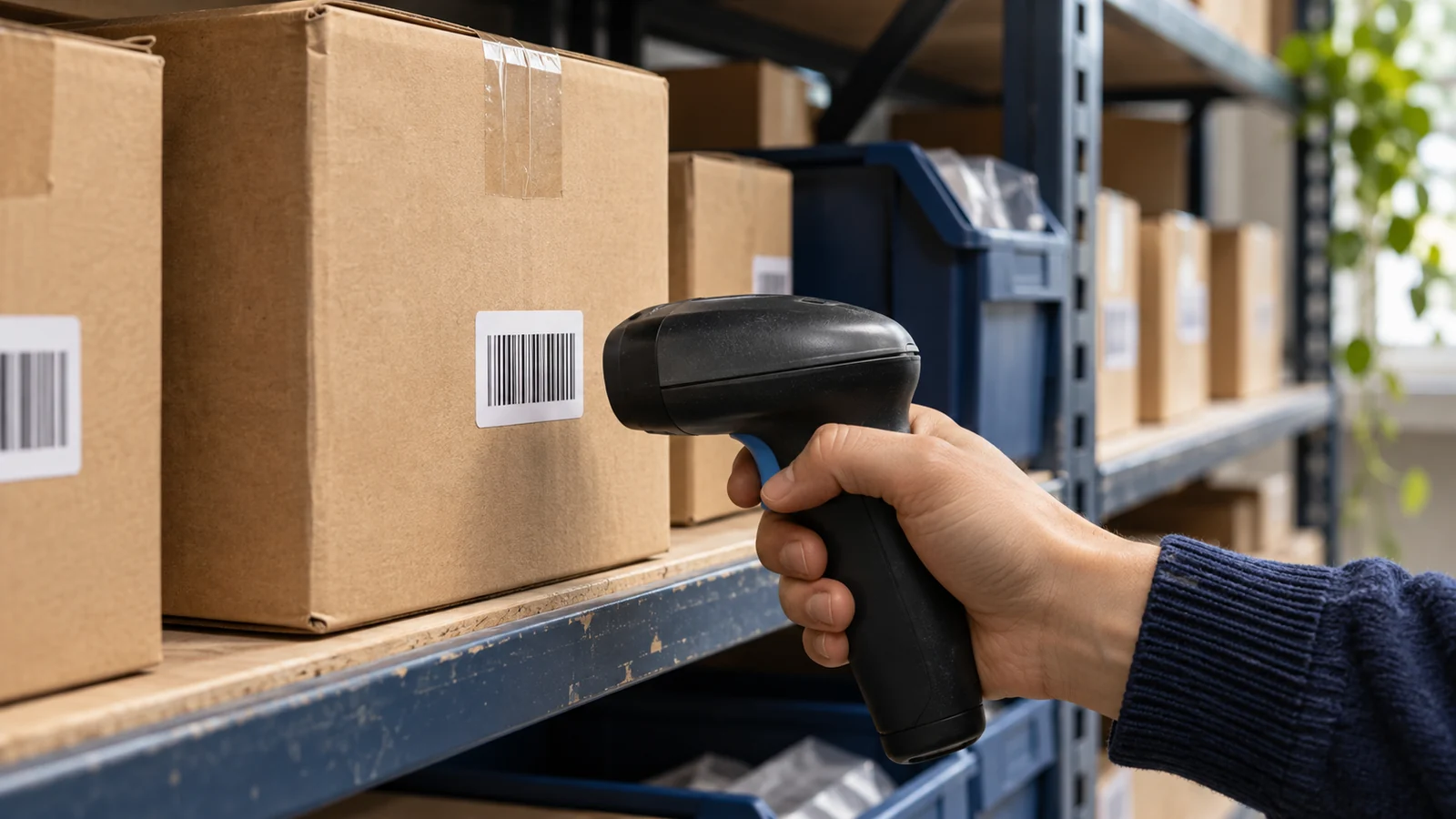
A product can already have the right description, photography and price while its stock quantity needs attention. This job handles that narrower task: comparing Shopify inventory with Randmar’s available quantity and writing the differences.
It works on existing products tagged for Randmar, with inventory tracking already enabled and the inventory item already connected to the Randmar fulfillment location. It matches products by barcode or SKU before deciding what to update.
What it can change
- On-hand quantities at the Randmar fulfillment location for eligible matched variants.
- Normally only quantities that differ. ForceQuantityWrite also writes unchanged eligible quantities.
What it leaves alone
- Product titles, descriptions, images, pricing and other merchandising content.
- Inventory tracking and location connections: this handler neither enables tracking nor activates a missing location.
- Products and variants that do not pass the eligibility and matching checks.
Exceptions you should know
- No Randmar tag, tracking disabled, missing location connection or no supported catalogue match: the variant is not eligible for this refresh. A successful run does not mean every store variant was updated.
- A missing location or access credential, invalid input, Shopify user error or missing quantity confirmation can fail the job. Earlier batches may already have changed quantities.
- A positive MaxVariants option limits the run. A forced write does not bypass eligibility rules.
- If the refresh is interrupted, this handler fails rather than scheduling its own continuation. A new run is needed to finish the remaining refresh.
- If inventory sync is off, the job returns successfully without changing quantities. ForceQuantityWrite does not override that setting.
- Quantity writes compare against the quantity read at the start. A competing change can cause Shopify to reject the write.
- Only explicitly defined virtual bundles are supported. MaxVariants limits eligible variants; it is not a selected-SKU filter.
From an eligible variant to an updated quantity
Process graph · conceptual sequence
- Existing variantRandmar-tagged product
- Eligibility checksTracking on; location connected
- Match + compareIdentify item and compare quantities
- Quantity writeChanged values, or forced write
Arrows describe the workflow. They do not represent elapsed time, throughput or a guaranteed outcome.
How to check the result
- Open the intended variant and inspect its inventory at the Randmar location, not just the overall product page.
- Compare the on-hand quantity and review written, unchanged and skipped counts where available.
- Investigate omitted variants by checking tag, tracking, location connection and identifiers before rerunning.
Use the narrowest job that fits
When the product is already connected and its content is right, a quantity refresh can address stock changes without reopening the rest of the listing.
When inventory does not look right
Inventory sync is enabled. Why is stock still stale?
The switch is only one condition. Check the product’s Randmar tag, inventory tracking, connection to the Randmar.io location, barcode/SKU match, and whether an enabled worker actually ran the job. Then inspect any Shopify errors.
How often does it run?
This processor does not establish a recurring interval. The live scheduler and worker configuration must be checked. No 15–60 minute interval is verified here.
Does turning the switch off and on force a refresh?
A toggle-triggered job is not established by this reviewed handler. An explicit quantity-force option can write unchanged eligible variants, but it does not turn on disabled sync or fix a missing location connection.
Does my Shopify SKU have to be Randmar’s internal ID?
No single internal-ID-only rule is established. Matching tries barcode against UPC, then SKU against manufacturer part number, then SKU against Randmar SKU. Confirm the exact item and identifiers; a short reference can be shared by different brands. When a reference is ambiguous, verify the brand and UPC before changing the Shopify SKU.
Which stock number should I check?
Check the variant’s on-hand quantity at the Randmar location. On-hand stock and customer-visible sellable availability are different measures; other Shopify settings can affect what shoppers see.
Can this article confirm my account is configured correctly?
No. That requires reading your linked-store settings, actual variant and location data, worker/job status and errors. Share the exact store, affected product/variant, expected quantity and observation time when requesting a diagnosis.
Does a permissions warning explain the stale stock?
Not by itself. A warning for one Shopify resource does not prove that the inventory write failed. Identify the exact failing operation and inspect the inventory job result before deciding what access or setup needs to change.
Scope of this explanation
Behavior verified against the reviewed local source baseline on 4 November 2026. The default worker configuration excludes these Shopify jobs; a runtime configuration must enable them. Live deployment, scheduling and your store’s settings were not verified. No update interval or real-time service guarantee is implied.
Further reading
Prepared 4 November 2026